



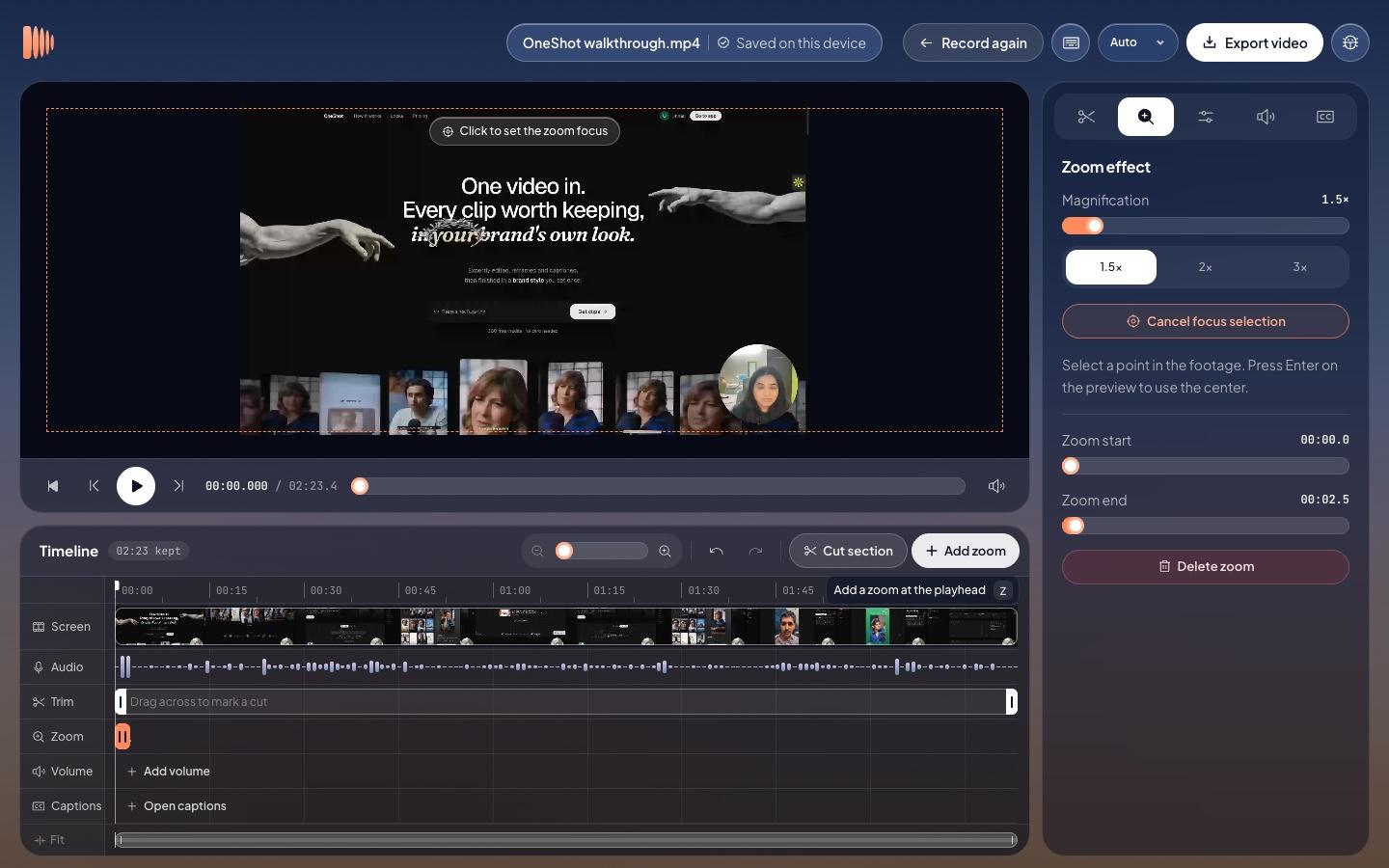
Zooms that follow your clicks
lastrecord finds likely clicks after you stop and adds smooth zooms. Drag them on the timeline or set the focus point yourself.
Record your screen, camera, and voice, then trim, cut, and zoom in the browser. No account, no uploads.
A OneShot walkthrough recorded with lastrecord.
Every edit runs in the tab you recorded in. Nothing waits on an upload or a render server.
lastrecord finds likely clicks after you stop and adds smooth zooms. Drag them on the timeline or set the focus point yourself.
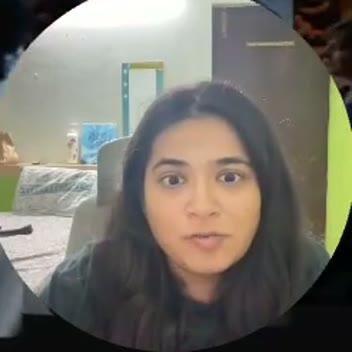
Add a webcam bubble, then move, resize, or hide it after you record.
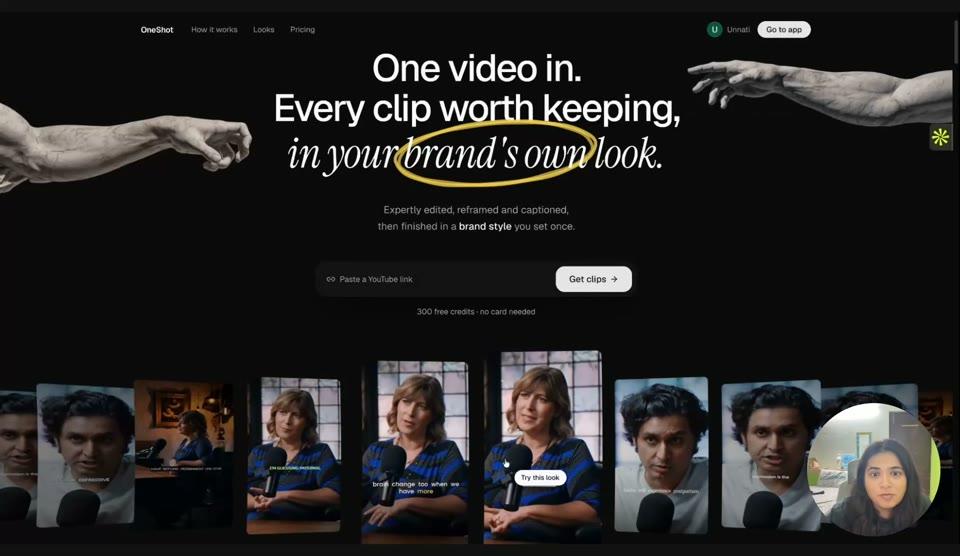 One video in. Every clip worth keeping.
Turn your narration into captions in 99 languages, then edit the words, timing, and style.

Add a wallpaper, gradient, or color, round the corners, and export in 16:9, 9:16, or 1:1.
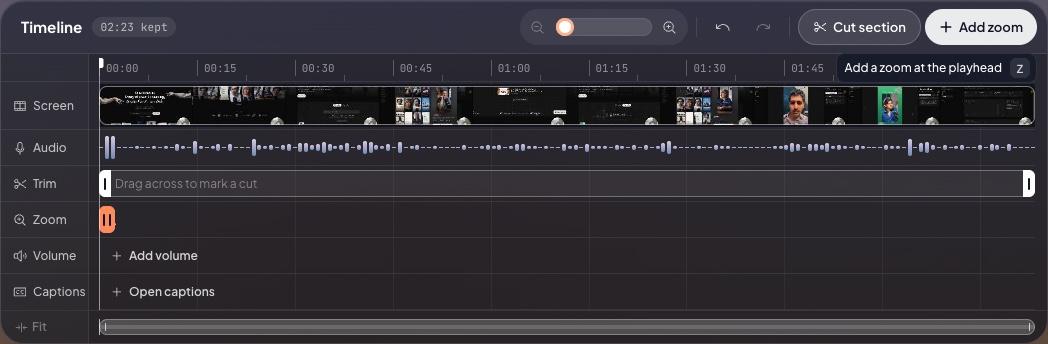
Drag the ends to trim, remove a stumble from the middle, and undo anything.
Open the page and press record. Your footage stays in this browser.
Zooms, cuts, captions, and the webcam bubble are rendered into one MP4 at up to 1080p.
How it works
Pick a screen, window, or tab. Pause whenever you need a breather.
Drag the ends to trim, cut a section from the middle, and add zooms.
Render in the browser and download an MP4 or WebM file.
Screen, camera, and mic are captured and saved on your device.
Trims, cuts, and zooms are previewed and rendered on your own machine.
Reopen saved drafts in this browser or export a video to keep a separate copy.
lastrecord uses Mixpanel to count visits and feature use with a random browser ID stored on this device. lastrecord honors Do Not Track.
Desktop Chrome and Edge. Screen capture needs localhost or HTTPS, and your operating system may ask for screen recording permission the first time.
You can record, edit, reopen local drafts, and export as a guest. An account is optional. Your recordings and drafts stay in this browser either way.
lastrecord stores recordings and edits in this browser on your device. Reopen a draft after a refresh or recover the saved portion of an interrupted take.
Up to 2 hours of active recording, space permitting. Paused time is excluded.
After you stop recording, lastrecord looks for visible changes that suggest a click and adds editable zooms to the timeline, right in the browser. For Chrome tabs, you can turn on Track exact clicks in Recording settings to zoom on your actual clicks with the lastrecord extension.
An MP4 rendered on your device. Keep lastrecord open until the export is saved.